


Troubleshooting

If you’re having an issue, don’t worry. Many problems are easy to fix, and we're here to help if you're still stuck!
Support cases usually involve a few common issues. We've covered these below, so please take a look.

Temporary Glitches
Sometimes a glitch may be temporary. Try the following:
- Restarting MobiFlight
- Unplugging and re-plugging the hardware
- Restarting Flight Simulator
Failing that:
- Restart your PC
Displays are Lit, but Only Show Zero
This indicates:
-
A good connection to the device
-
Aircraft Profile is loaded
-
The data is not coming through from Flight Simulator
No Connection to Flight Simulator
MSFS
Communication with the simulator is provided by a file called a WASM module.
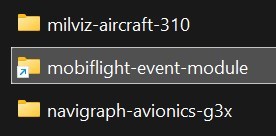
This file is supposed to be located in the Community folder of either FS2020 or FS2024.
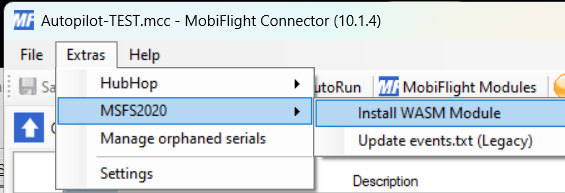
- Use the menu option Extras -> Microsoft Flight Simulator -> Install WASM Module. This will install into FS2020 and FS2024, if they are detected.
If the installation fails (simulator not detected, etc.), you can manually copy the module from your MobiFlight installation folder into your MSFS Community folder.
X-Plane
X-Plane is automatically detected by MobiFlight when it is running. We have not had any reports of failed connections to X-Plane.
FSX / Prepar3D
Communication is provided by FSUIPC.
- Ensure you have the correct version installed for your simulator.
FSUIPC.exe must be running while the simulator is running. By default, this happens automatically, but in case of a corrupted xml file, FSUIPC must be started manually. You can see it running in the system tray.
Flickering Display
A display will flicker when it is being fed two inputs simultaneously. It tries to display both numbers, and switches rapidly between them.
This occurs when conflicting aircraft profiles have been loaded into MobiFlight, most commonly through the use of the "Merge" command.
"Merge" should only be used where the pilot has multiple devices which all use MobiFlight. Further information is given at Managing Multiple Devices.
This issue can be resolved by either of the following options:
Reset the Aircraft Profile (Recommended)
The guaranteed way to correct a problem with an Aircraft Profile is to clear it and start again.
- Use the menu option File -> New to clear the Aircraft Profile in use.
- Delete the file from your computer.
- Re-download the profile, and take care to assign it properly to the correct device (CXL Autopilot or CXL Radio).
Manually deleting the conflicting entries from the list
Users who are familiar with MobiFlight can scroll down the Output tab on MobiFlight and look for duplicate entries. It is usually an entire Aircraft Profile which bas been merged (appended) onto an existing one
- Scroll down the Output tab and delete any conflicting entries from the list
- Remember to also delete the corresponding entries on the Input tab
Extra Inputs (knob turns 2 degrees instead of 1 degree, etc.)
This occurs when duplicate aircraft profiles have been loaded into MobiFlight, most commonly through the use of the "Merge" command.
This is the same cause as Flickering Displays, follow those steps to resolve it.
MobiFlight Window Disappears
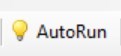
If you have clicked the "AutoRun" option (the light bulb goes yellow) then when you run MobiFlight it will automatically minimise itself to the system tray.
There are two ways to prevent this behaviour
- Turn off Autorun (click the light bulb so it goes white instead of yellow)

Or
-
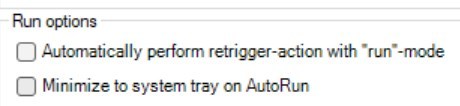
In settings, untick the "Minimize to system try on AutoRun" option
[Autopilot] Vertical Speed Display is Blank
By default, the V/S display only comes alive when the V/S mode active. Pushing the V/S button will activate the display.
Unwanted Throttle Movements on "Run"
On the MobiFlight settings menu, deselect Automatically perform retrigger-action with "Run".
(We have opened a issue https://github.com/MobiFlight/MobiFlight-Connector/issues/1856 to fix this on GitHub)
On the MobiFlight settings menu, deselect Automatically perform retrigger-action with "Run".
(We have opened a issue https://github.com/MobiFlight/MobiFlight-Connector/issues/1856 to fix this on GitHub)
No Connection to Device
- Open the MobiFlight Modules window. This is the best place to track what hardware is connected.
- Unless instructed by support, do not make any changes or push any buttons on this screen.
- Check the device appears as "CXL Autopilot" and/or "CXL Radio":
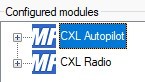
If you see the correct devices (as shown above)
If you're still unable to use your hardware, the problem is likely related to the Aircraft Profile, not the hardware connection.
- Use the menu option File -> New to clear the Aircraft Profile in use.
- Delete the file from your computer.
- Re-download the profile, and take care to assign it properly to the correct device (CXL Autopilot or CXL Radio).
If the device appears as "Protoboard v2" or "MobiFlight Mega"
This indicates the firmware on the device has been overwritten.
- Visit the Firmware page to upload the correct firmware to your device.
If the device appears as "Compatible"
Visit Troubleshooting Compatible Devices to solve this issue.
Something Else?
If you're still having a problem, please contact Support and we can help you solve it.
It would be helpful to know:
- What is the issue, including pictures or screenshots
- What steps you have taken to diagnose or solve the problem, and what was the result
- Which simulator, aircraft, and Aircraft Profile you have loaded
