


Managing Multiple Devices


MobiFlight 11
MobiFlight 11 introduces a new, simpler way to control multiple devices simultaneously.
We have updated this page for MobiFlight 11.
If you're using MobiFlight 10, you may access the original version of this page here.

Have more than one MobiFlight Device?
If you have more than one MobiFlight device, e.g. Autopilot and Radio Stack, it's easy to run them both simultaneously through MobiFlight.
To begin, set up your first device as shown on our Getting Started support page.
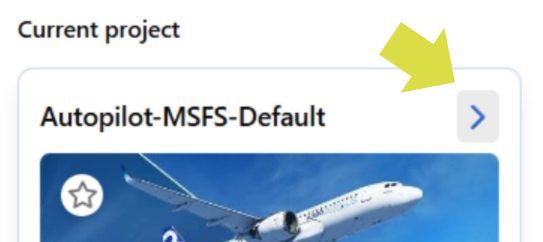
Be sure that you have gone into the profile for the first device, by clicking the > button as shown:
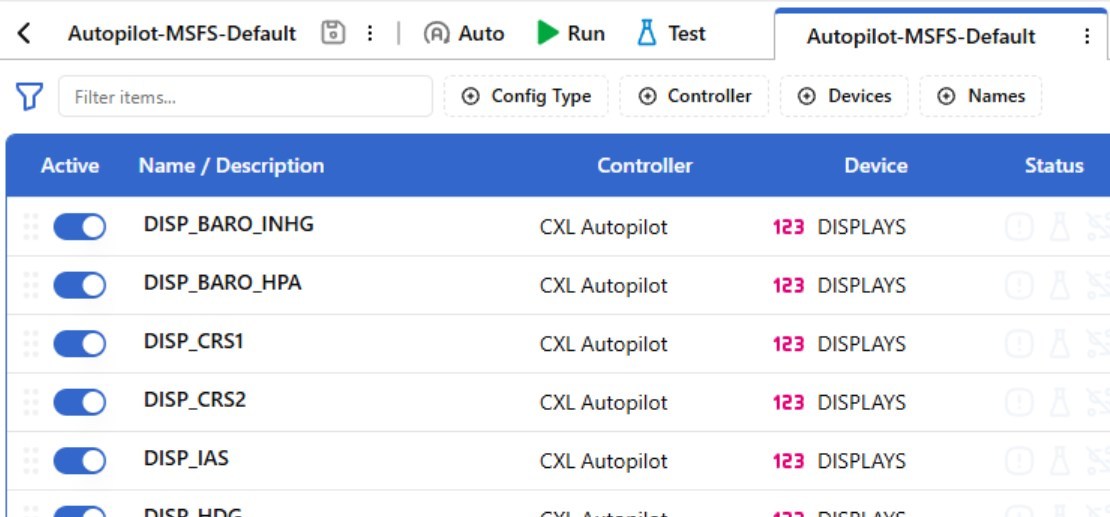
Now you should be able to see all of the configurations for the first aircraft profile:
How to add your second (or third, or fourth) device:
- Plug in the additional device(s)
- Remember to use the ports built into your PC, or a USB hub with a separate power supply
- Download the relevant Aircraft Profile from the Aircraft Profiles page
- In MobiFlight, click the + icon, as shown below
- Choose "From existing project"

- Navigate to the profile you downloaded for the additional device
- Now, both Aircraft Profiles are shown side-by-side

- Now, when you click the RUN button, both devices will be run simultaneously
